| Assets - Meters Configuration | |
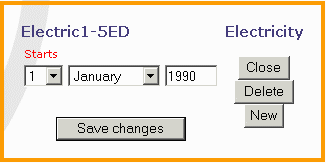 At the top of the Meter Configuration page there are details about the meter with the Start Date for that Configuration and, if it is an historical one, the End Date as well. For a current Configuration there are buttons for Close, Delete and New and further on-screen instructions follow on clicking any of these. There is also a Cancel option if any of these are wrongly clicked. An historical Configuration only has a Delete button. When deleting a current Configuration, which may well be correcting a mistake, there is an option to also reinstate the immediately previous one (if any) at the same time.  In the middle of the screen the Useful Shortcuts provide quick access to other screens for the same Meter, to different Meters, or, if there is more than one Configuration, the Previous and Next links allow scrolling between them. 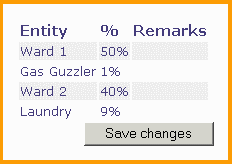 The box at the bottom relates to the Entities supplied by this Meter, and the proportion of energy that they consume. Which Entities are supplied from which Meters may change as new Meters or Sub- Meters are installed and old ones are removed. The application allows for this by having a Start Date and End Date for each specific Entity / Meter relationship as defined in the Configuration. To allocate or edit the percentages, or to add a new Entity, see the more detailed instructions in the SHORTCUT SECTION under the heading, Energy/Utility Maps and Configuration. If there is also some sub-metering, just below the bottom box there will be a message explaining that any sub-metered energy is not to be included - ie the percentages are to show the entire allocation of the remaining non-sub-metered portion of energy and, as such, they should therefore total 100%. Any down stream Sub-Meter(s) will be listed below. If the Meter itself is a Sub-Meter, just above the bottom box there will be a statement to this effect which also identifies the Parent Meter with a [Local ID] link. See Appendix I for definitions of each information field and a guide to creating an Energy/Utility Map. | |